A mock recall is a planned exercise that tests your traceability: you choose a lot and check how quickly and fully your records show where it went and what went into it. TraceBench does the tracing part free in your browser, from your own production and despatch exports, with the row behind every link and every gap named.
Free to use. No account, email address or trial. Your files are never uploaded.
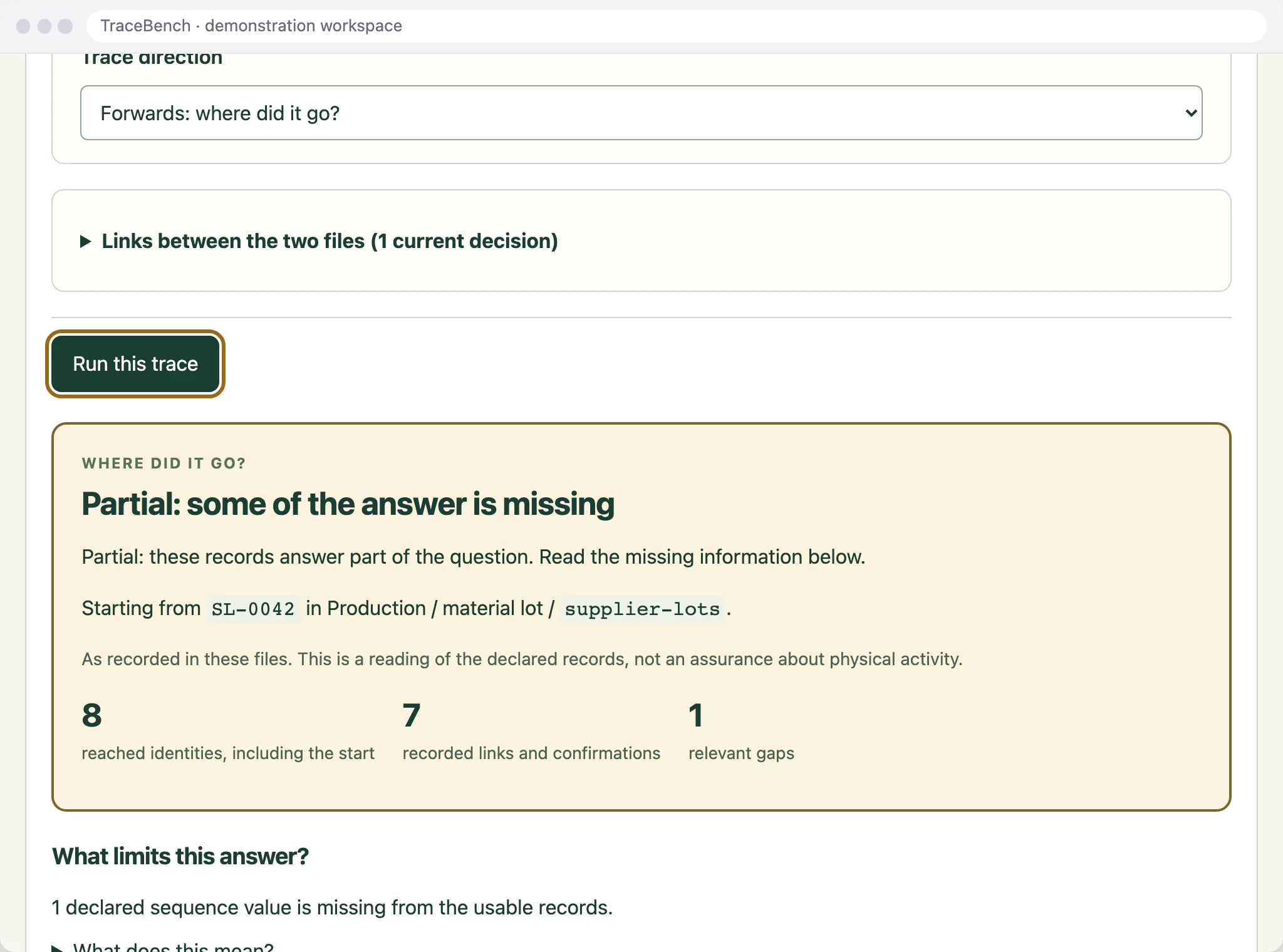
A supplier lot traced forwards, with the gap that limits the answer.
What does a mock recall test?
Whether your records can answer two questions quickly and fully: where did this lot go, and what went into it? Customer and certification audits often also expect quantities to be reconciled and a time limit to be met. TraceBench answers the tracing questions from the records you load; reconciling quantities stays a separate check in your own system.
Which records do I need?
Usually two exports: production records that state which input lot went into which output batch, and despatch records that state which batch went into which shipment. Load each as a UTF-8 CSV and say what it records. A goods-in file on its own shows what arrived, not where it was used, so it cannot answer where a lot went.
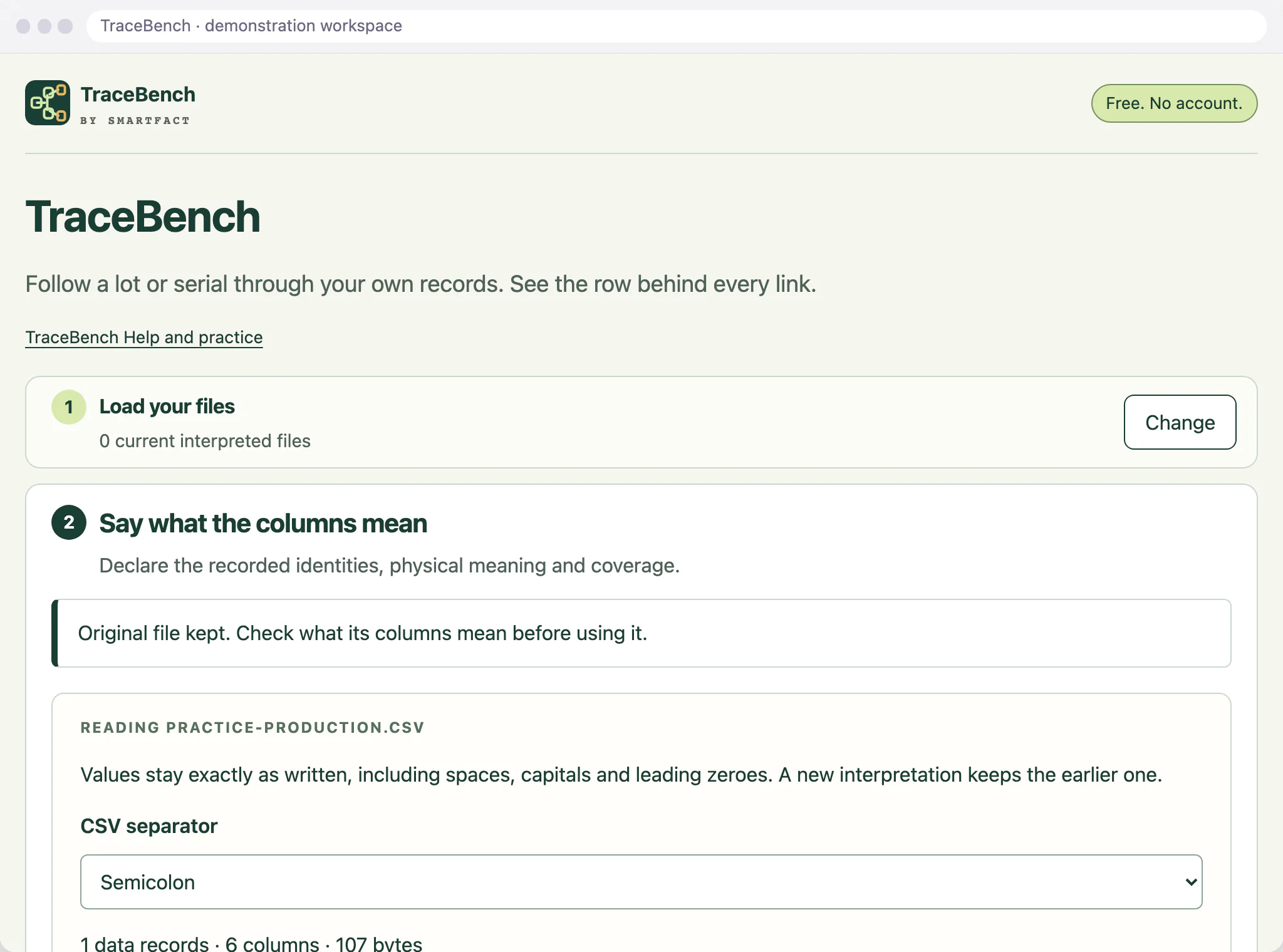
Each file says what it records: production, despatch or lots.
How do I run the trace?
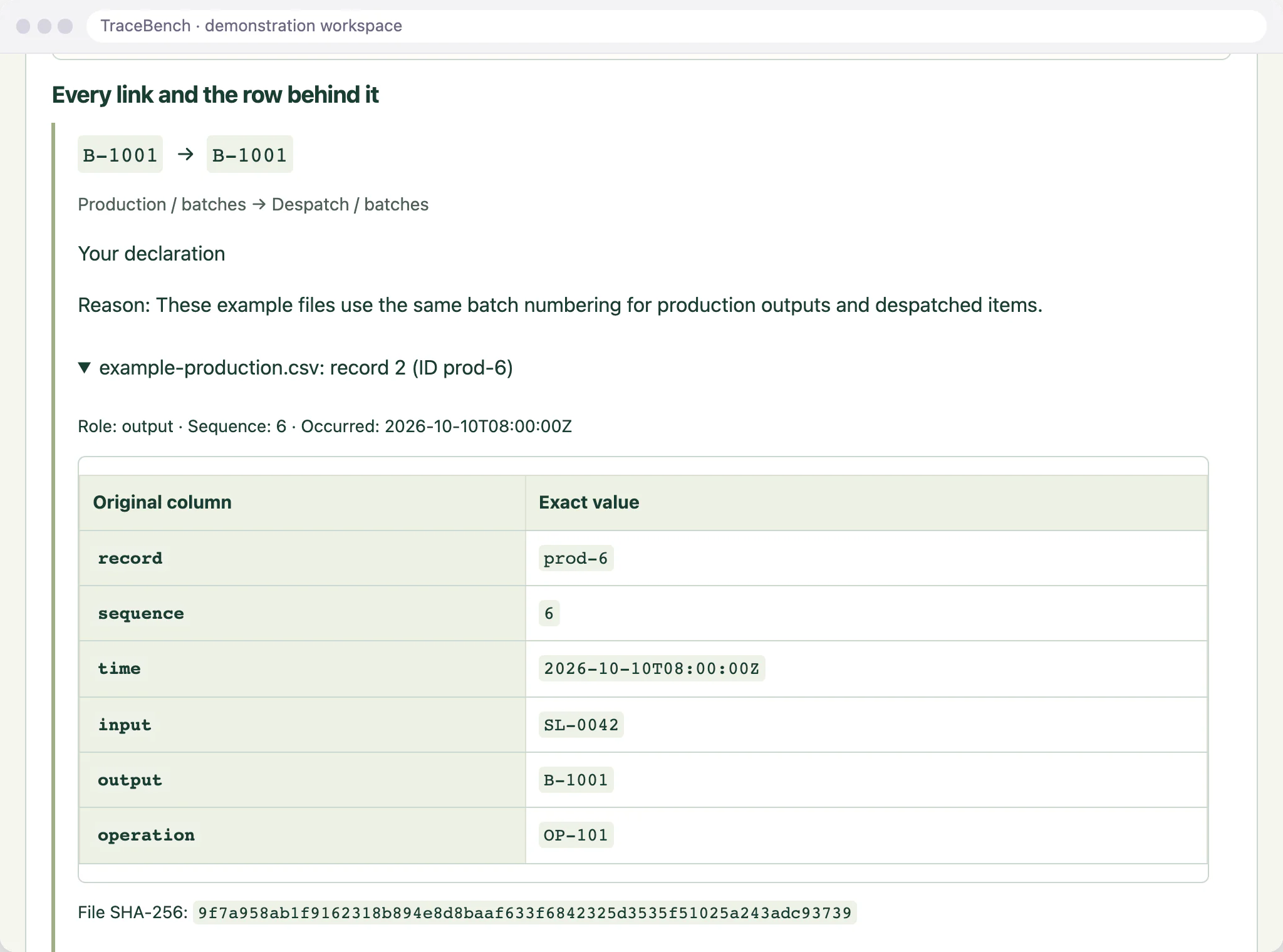
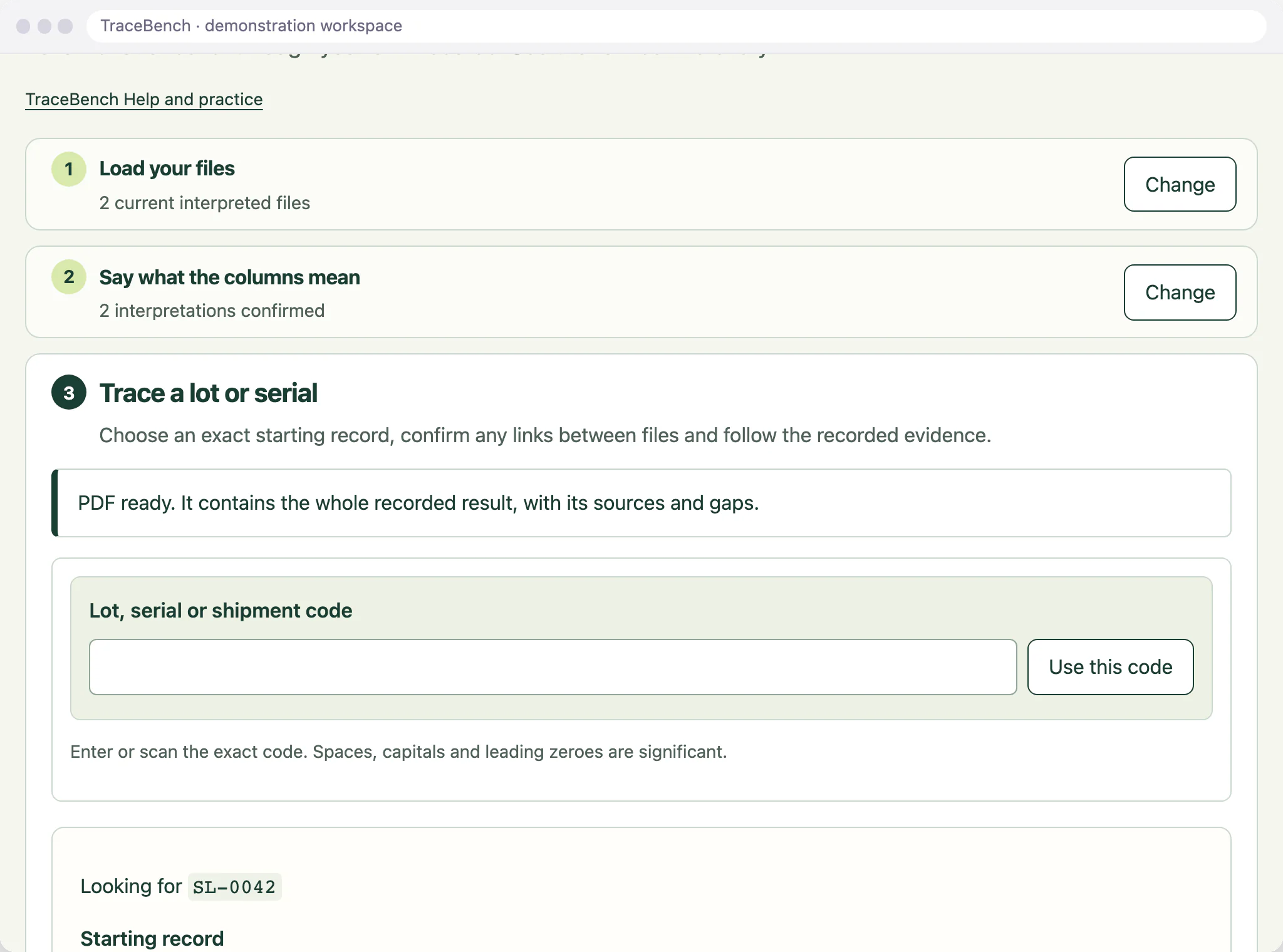
Scan or type the lot number exactly as recorded, choose the starting record and Forwards: where did it go?, then Run this trace. To cross from production into despatch, first confirm under Links between the two files that the batch codes in both refer to the same batches. The result lists every reached batch and shipment, and every link opens to its file, record number and original cells.
Every link opens to the row it came from.
What if the records have gaps?
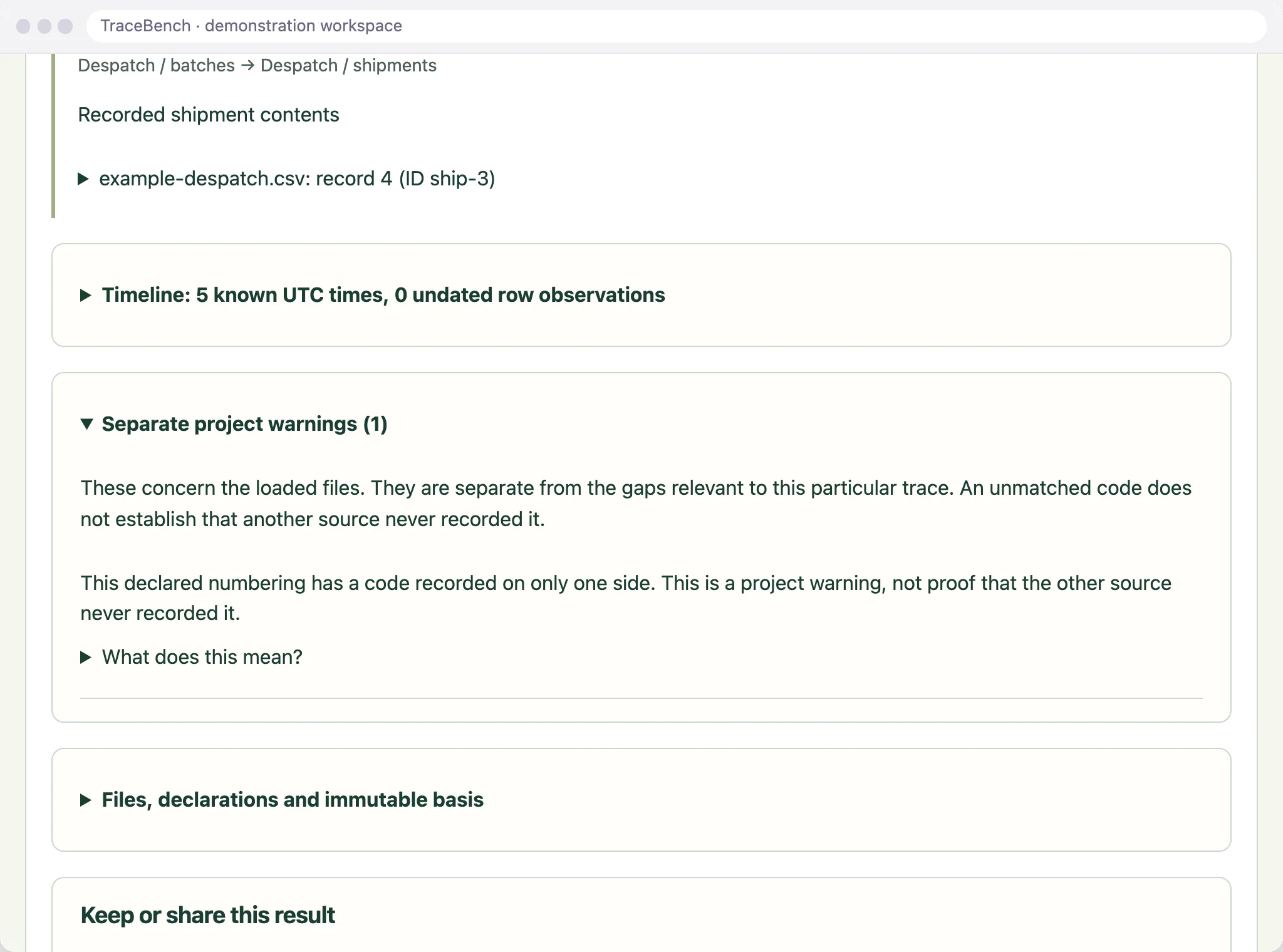
TraceBench says so. A missing sequence number in a range you declared, coverage you are not sure of, or a code in the other file that nobody has confirmed as the same batch leaves the result Partial or Unknown, with the reason named. A code with no match is reported as No recorded match within what you loaded, never as proof that it was not made or not shipped.
Warnings about the files, kept apart from the gaps in this trace.
What should the exercise record keep?
Download the trace as an A4 PDF or a CSV. Both hold the exact question, every link with its rows, the gaps, the separate project warnings and each file's name and SHA-256 fingerprint. Keep the trace in the project history and download a backup, so the exercise can be reopened later with the same files and decisions.
The trace as a PDF report, with its sources and gaps.
What TraceBench does not do
It does not decide whether to recall, hold stock or notify customers, and it does not reconcile quantities or time the exercise. It reads only what the loaded files record, two files at a time, with no connection to your ERP. A result describes the records, not what physically happened.
MADE FOR THE FLOOR
For quality and technical managers at small food and engineering manufacturers preparing for a customer audit, a certification audit or their own traceability test.
A USEFUL STARTING POINT
A trace is only as good as the records behind it
In a mock recall it is easy to fill a gap from memory, or to join two spreadsheets on a code that only looks the same. TraceBench follows the links your files record and the ones you confirm, shows the row behind each and keeps every gap in the answer, so the exercise tests your records rather than your memory of them.
FROM QUESTION TO EVIDENCE
Three steps to a useful result.
01
Load production and despatch
Export the production and despatch records for the period, load them as CSV files and say what each column means, including the numbering each code uses and what the file covers.
02
Trace the chosen lot
Scan or type the lot, choose Forwards: where did it go? and run the trace. Confirm a link between the two files only where you know the codes refer to the same batch.
03
Keep the record
Read the gaps, download the PDF or CSV for the exercise file, keep the trace in the project history and download a backup.
A CONCRETE EXAMPLE
Partial, because one record is missing
In the built-in example, which declares that both files use the same batch numbering, the records show supplier lot SL-0042 going into batches B-1001 and B-1002, and those batches in shipments S-501, S-502 and S-503. The production file declares sequence numbers 6 to 8, but number 7 is missing, so TraceBench reports the trace as Partial and names the missing sequence. It does not assume the missing record was unimportant.
USED IN PRODUCTION
When tracing becomes quality work for a team.
TraceBench answers one question at a time, from files you load on one device. When traces become regular work for a quality team, LotTrail keeps the declared sources, reviewed identity links and evidence together. LotTrail is an invited trial, with scope agreed with you.
Invited trial
LotTrail
LotTrail follows a lot or serial number through the records your factory already keeps, with the source of each link and the gaps shown. Sources are declared, mappings are reviewed, identity links are approved by a supervisor and the evidence is retained for quality work. The invited trial covers two declared sources at one site.
No. Quantities appear only as they are written in the original rows, and TraceBench never adds, allocates or reconciles them. Where several inputs share one production operation, every input may relate to every output, and TraceBench labels that as potential attribution instead of dividing the quantities.
Can I trace backwards from a customer complaint?
Yes. Enter the shipment number from the despatch records and trace backwards: TraceBench follows the shipment's recorded contents to the batches and supplier lots behind them. A shipment can only be traced backwards.
Is the result evidence for an auditor?
It is a record of what your files show. The PDF states the question, the files and their fingerprints, every link and every gap. A fingerprint shows that a file has not changed since it was loaded; it does not show that the records are true or that they cover everything that happened.
What are the current limits?
TraceBench is a reading of the records you load, not a recall decision or proof of what physically happened. It has no recall, hold, stock or customer-notification actions, does not allocate or reconcile quantities, and never links records because their codes, times, descriptions or row order look alike. Two current files at a time, each UTF-8 CSV with column names in the first row, up to 5 MiB, 5,000 data records and 40 columns, and 10,000 recorded facts across both. A trace follows up to 20 manufacturing steps and stops at its limits with a stated reason. XLSX files are not read, and there is no connection to your ERP or any other system.
What happens to my data?
Your files stay in this browser. Work is held in memory until you choose Save on this device, which keeps the whole project, original files included, in this browser. Files are read and fingerprinted on your device and never uploaded, and there is no account or email step. Reports and backups contain your records and file names, so check them before sharing. Google Analytics is optional and loads only after you accept; it never receives codes, rows, file names or results. Use Analytics settings to change your choice; see /privacy/.
ONE SMALL JOB, DONE WELL
Put TraceBench to work.
Open the free tool and start with one known example.
Practical tools. Useful on their own. Better around the same floor.
Automate factory decisions with rules you describe in plain English. Explore focused SmartFACT services, plus free tools for everyday checks.
Invited trialSuggested next step
LotTrail
Follow a lot or serial number through the records your factory already keeps, with the source of each link and the gaps shown. Explore an invited trial with two declared sources.
Bring data in from uploaded sheets or the Shopify, WooCommerce and PrestaShop connectors, check each change and deliver it to the products that use it.
Scan an empty container to send the right refill request to stores. Approved plain English rules set the stores queue, priority, ticket printer and escalation.
Label each offcut, find a suitable length before cutting new stock and record what you used. Approved plain English rules decide what to keep and where it goes.
Check a shared tool before handover, record who has it and keep damaged or overdue tools out of the next issue. Explore an invited trial for one factory crib.
Receive, put away, reserve and issue stores material with barcode checks, keeping held, reserved and available stock apart. Explore an invited trial for one stockroom.
Load one or two CSV exports and follow a lot or serial forwards or backwards, with the row behind every link. No account needed.
You are here
Help
SmartFACT Help
Step-by-step guides and interactive demonstrations for the SmartFACT suite. Read the instructions, watch a task or practise with real product screens and sample data.

 Invited trial


