Skip to content
TraceBenchBY SMARTFACT

FREE LOT AND BATCH TRACEABILITY

How do I trace a batch through spreadsheet records?

Updated

Batch traceability from spreadsheets means linking the rows that record each batch, such as a production sheet listing the lots used in each batch and a despatch sheet listing the batches in each shipment. TraceBench does the linking free in your browser: save each sheet as CSV, say what its columns mean and follow a batch through both, with the row behind every link.

Free to use. No account, email address or trial. Your files are never uploaded.

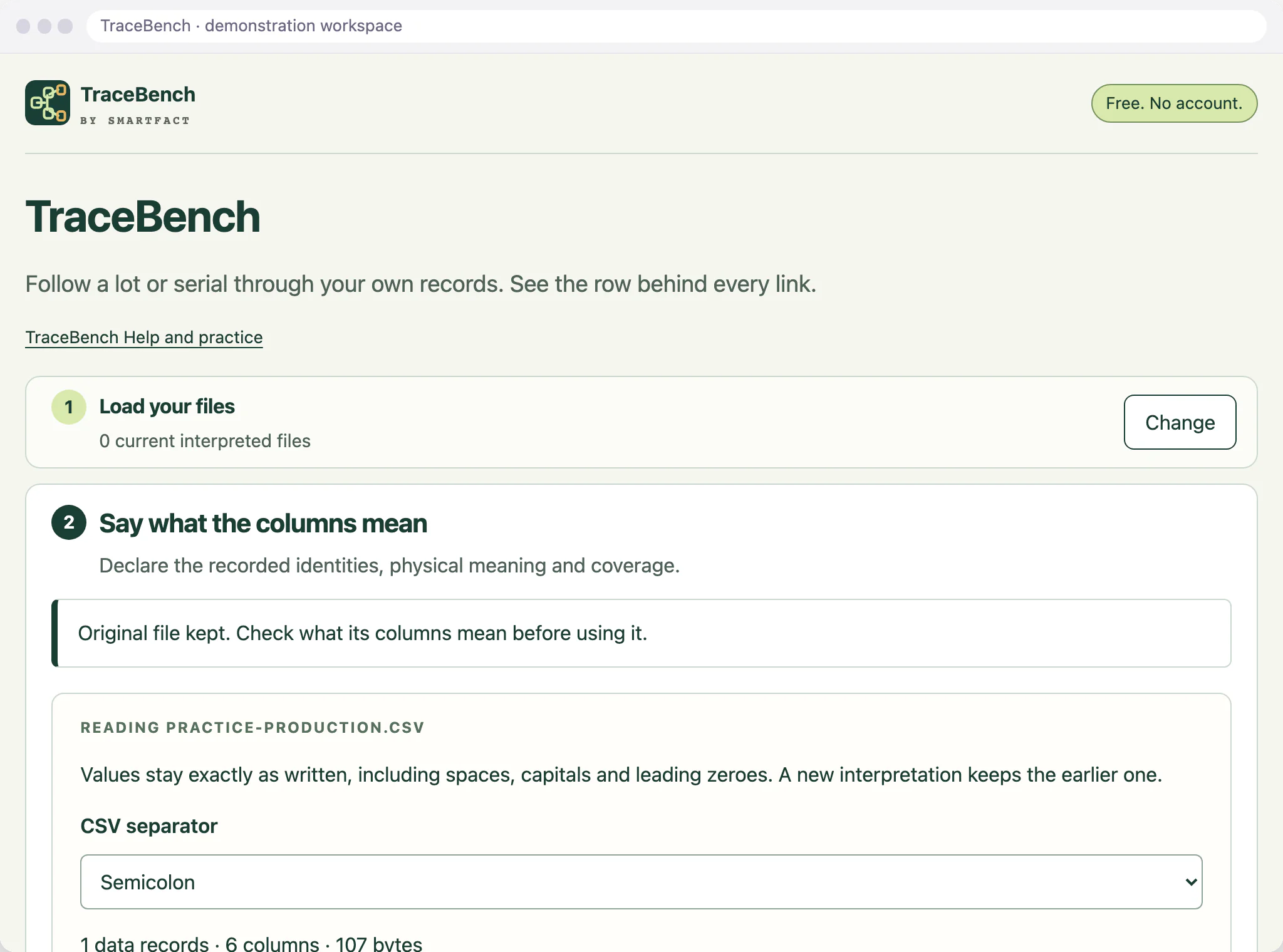
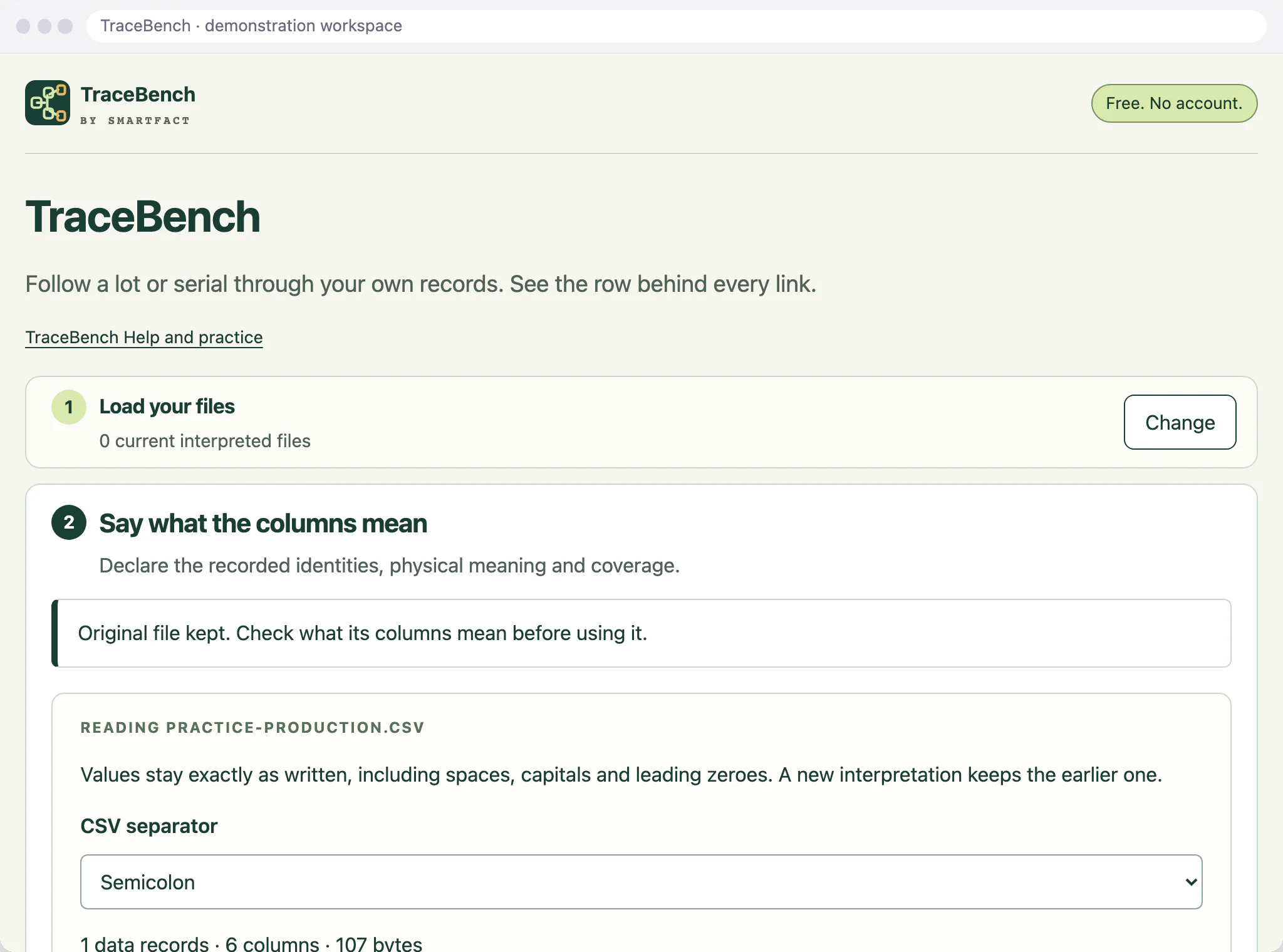
TraceBench Say what the columns mean step for a production file, choosing the input and output code columns and their numbering names
Saying which columns hold the input and output codes.

How should I export the sheets?

Save each sheet as CSV UTF-8, with the column names in the first row, and choose comma, semicolon or tab when you load it: TraceBench does not guess. Each file can hold up to 5,000 records and 40 columns. A file with repeated or empty column names, blank records or uneven rows is refused with the reason, before anything changes.

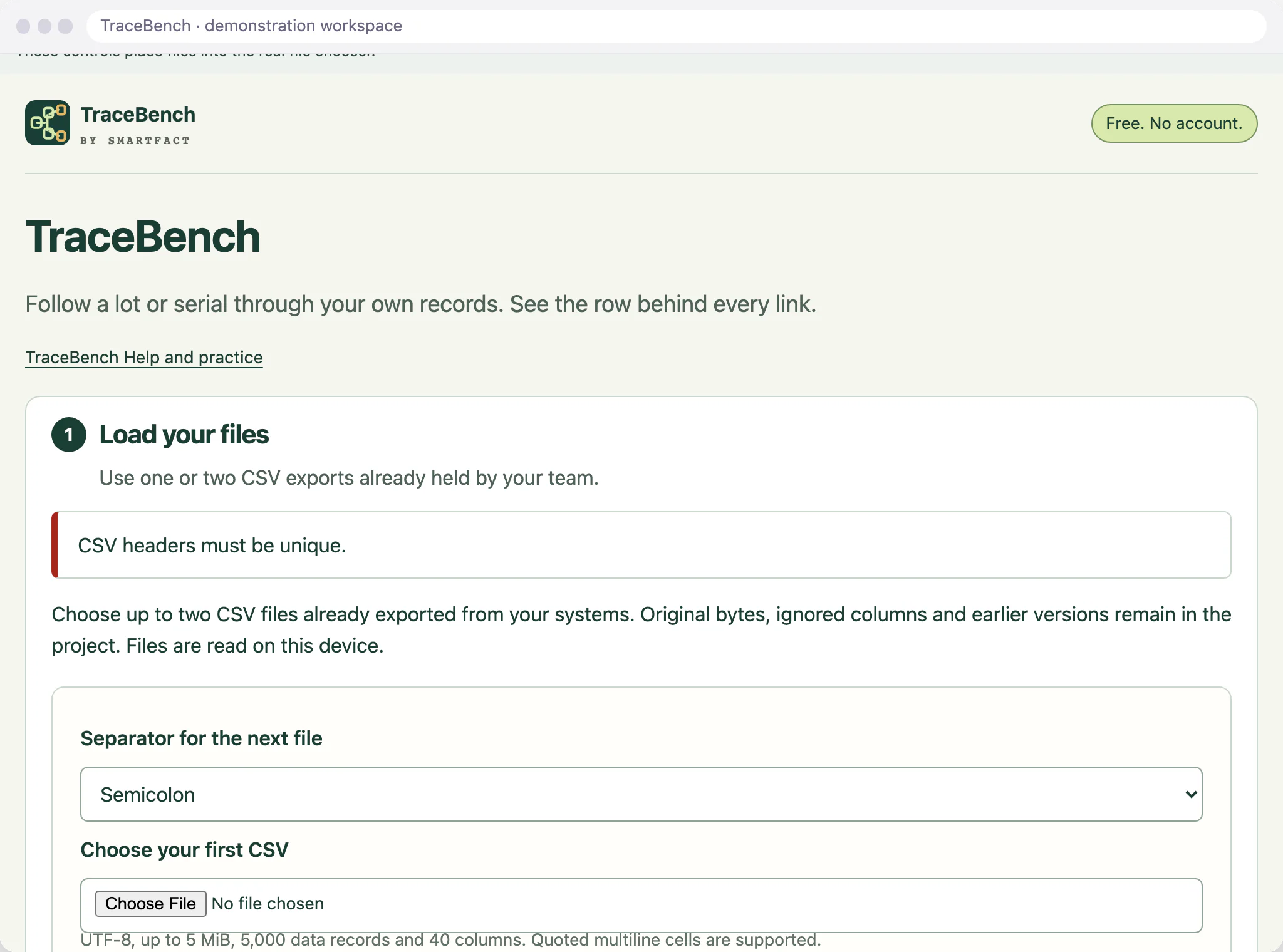
TraceBench refusing a CSV file with the message CSV headers must be unique.
A file with a repeated column name, refused before use.

Which columns does TraceBench need?

For production, the column with the input lot and the column with the batch made from it; for despatch, the batch column and the shipment column. Give each code column a numbering name, such as supplier lots or finished batches. A stable record ID, a sequence number and times are optional: a record ID identifies each row, a sequence lets TraceBench spot a missing record, and times build a timeline.

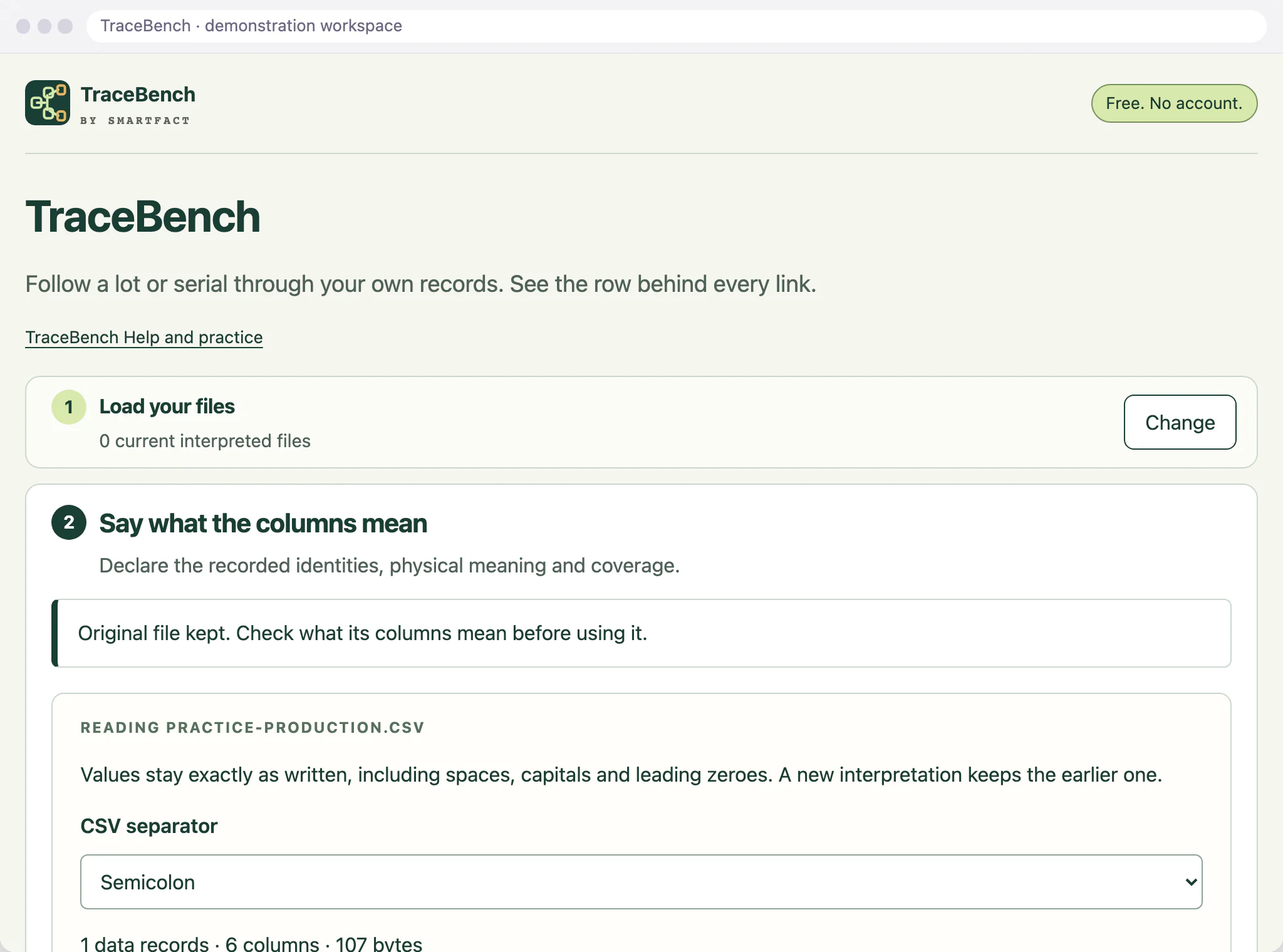
TraceBench Which source record is this? section, with a column chosen as the Stable record ID column
A stable record ID for each row, where your sheet has one.

Will it keep leading zeroes?

Yes. TraceBench reads the file itself and keeps every value exactly: 000017 and 17 are different codes, and spaces and capitals count. If a spreadsheet removed the zeroes before you saved it, export the column as text from the source system and load the file again.

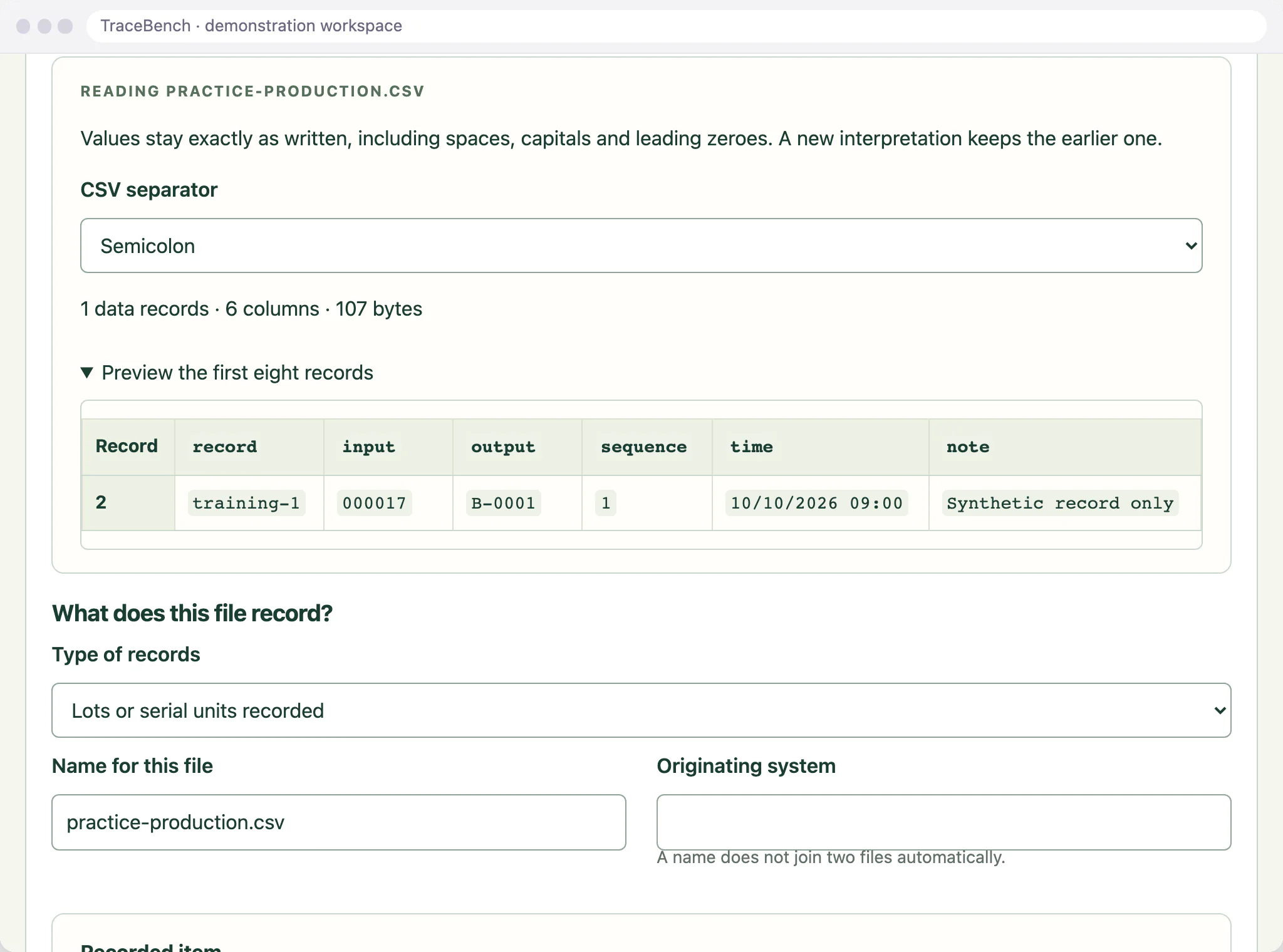
TraceBench preview of the first records of a production file, with the input code 000017 shown exactly as written
Values shown exactly, leading zeroes included.

What happens to dates and times?

You choose the written format, such as day/month/year, and the time zone. A time that is missing, or that falls in a clock change and could be either of two times, stays unknown instead of being guessed. Times only order the timeline: they never create a link between records.

TraceBench Date and time format set to day/month/year for the occurrence time column
The date format chosen, not guessed.

What TraceBench does not do

It reads CSV only, so it cannot open XLSX files or follow formulas or lookups in your workbook. It never changes your files, does not join rows because codes, dates or descriptions look alike, and does not add up or reconcile quantities.

MADE FOR THE FLOOR

For small manufacturers and their office, quality and production staff whose batch records live in spreadsheets or in CSV exports from an ERP or MRP system.

A USEFUL STARTING POINT

A lookup is not a link

In a workbook, a lookup between a production sheet and a despatch sheet returns the first row whose code matches, and it cannot tell you when a batch number means something different in each sheet. TraceBench links two files only where you confirm a pair or declare that two columns share a numbering, keeps every matching row and shows which record each link came from.

FROM QUESTION TO EVIDENCE

Three steps to a useful result.

  1. 01

    Save each sheet as CSV

    Save the production and despatch sheets as CSV UTF-8 with column names in the first row, then load one or both and choose the separator.

  2. 02

    Say what the columns mean

    Choose what each file records, the code columns and their numbering, a record ID and sequence if you have them, and what the sheet covers. Confirm the columns you leave out.

  3. 03

    Trace and keep the result

    Scan or type a batch or lot, run the trace in either direction and download the PDF or CSV. Save the project on this device or download a backup.

A CONCRETE EXAMPLE

Two numbering systems, kept apart

A production sheet records supplier lot SL-0042 going into batches B-1001 and B-1002, and a despatch sheet records B-1001 in shipments S-501 and S-502. TraceBench does not assume that the B-1001 in each sheet is the same batch. Confirm that pair, or declare that the production output and despatch batch columns use the same numbering, and the trace crosses into despatch with your reason shown on the link.

USED IN PRODUCTION

When tracing becomes quality work for a team.

TraceBench answers one question at a time, from files you load on one device. When traces become regular work for a quality team, LotTrail keeps the declared sources, reviewed identity links and evidence together. LotTrail is an invited trial, with scope agreed with you.

Invited trial

LotTrail

LotTrail follows a lot or serial number through the records your factory already keeps, with the source of each link and the gaps shown. Sources are declared, mappings are reviewed, identity links are approved by a supervisor and the evidence is retained for quality work. The invited trial covers two declared sources at one site.

BEFORE YOU START

A few practical answers.

Can it read Excel files?

No. Save each sheet as CSV UTF-8 first. TraceBench reads comma, semicolon or tab separated text, up to 5 MiB per file, and never changes the original.

What if a row appears twice?

Identical repeated rows under the same record ID count once, and every row reference is kept. If rows with the same ID disagree, all of them are set aside as a conflict instead of TraceBench picking one, and the trace names the conflict.

What if my sheet has no record ID column?

You can still trace with it. Each link then points to the row's record number in the file, marked row numbers only, so you know it refers to a position in that file rather than a stable ID.

What are the current limits?

TraceBench is a reading of the records you load, not a recall decision or proof of what physically happened. It has no recall, hold, stock or customer-notification actions, does not allocate or reconcile quantities, and never links records because their codes, times, descriptions or row order look alike. Two current files at a time, each UTF-8 CSV with column names in the first row, up to 5 MiB, 5,000 data records and 40 columns, and 10,000 recorded facts across both. A trace follows up to 20 manufacturing steps and stops at its limits with a stated reason. XLSX files are not read, and there is no connection to your ERP or any other system.

What happens to my data?

Your files stay in this browser. Work is held in memory until you choose Save on this device, which keeps the whole project, original files included, in this browser. Files are read and fingerprinted on your device and never uploaded, and there is no account or email step. Reports and backups contain your records and file names, so check them before sharing. Google Analytics is optional and loads only after you accept; it never receives codes, rows, file names or results. Use Analytics settings to change your choice; see /privacy/.

ONE SMALL JOB, DONE WELL

Put TraceBench to work.

Open the free tool and start with one known example.

Start a free trace →

THE SMARTFACT SUITE

Practical tools. Useful on their own.
Better around the same floor.

Automate factory decisions with rules you describe in plain English. Explore focused SmartFACT services, plus free tools for everyday checks.

Invited trialSuggested next step

LotTrail

Follow a lot or serial number through the records your factory already keeps, with the source of each link and the gaps shown. Explore an invited trial with two declared sources.

Explore LotTrail ↗
Invited trial

LabelRules

Describe label rules in plain English. Automatically select layouts, resolve customer codes and check each job before printing.

Explore LabelRules ↗
Early access

KitProof

Turn plain English component rules into automatic kit checklists, then check scans against the expected parts and quantities.

Explore KitProof ↗
Early access

WorkSteps

Turn plain English rules into automatic step selection for each unit, with required evidence and a record of completed work.

Explore WorkSteps ↗
Early access

FactorySpec

Apply approved product rules and calculations automatically to turn dimensions and options into manufacturing requirements.

Register early-access interest ↗
Early access

ConfigSheets

Bring data in from uploaded sheets or the Shopify, WooCommerce and PrestaShop connectors, check each change and deliver it to the products that use it.

Explore ConfigSheets ↗
Early access

ParcelOffice

Scan the work order and the parcel choice to book the courier and print the labels. Approved plain English rules recommend or choose the parcel.

Explore ParcelOffice ↗
Early access

RefillFlow

Scan an empty container to send the right refill request to stores. Approved plain English rules set the stores queue, priority, ticket printer and escalation.

Explore RefillFlow ↗
Early access

RemnantRack

Label each offcut, find a suitable length before cutting new stock and record what you used. Approved plain English rules decide what to keep and where it goes.

Explore RemnantRack ↗
Invited trial

ToolCustody

Check a shared tool before handover, record who has it and keep damaged or overdue tools out of the next issue. Explore an invited trial for one factory crib.

Explore ToolCustody ↗
Invited trial

StoresFlow

Receive, put away, reserve and issue stores material with barcode checks, keeping held, reserved and available stock apart. Explore an invited trial for one stockroom.

Explore StoresFlow ↗
Early access

CheckStation

Scan an identified unit to get its approved final-inspection checks, then record exact readings with their result, holds and release history.

Register early-access interest ↗
Free tool

ScannerBench

See the text and key events your keyboard scanner sends. Compare them with the value you expected.

Test a scanner ↗
Free tool

PrintBench

Print a known PDF, measure its reference marks and compare scans from the printed codes.

Check a print ↗
Free tool

CardBench

Create 100 × 50 mm bin and rack cards with Code 128 or QR, from one record or a CSV.

Make bin cards ↗
Free tool

CountBench

Count stock by location with a barcode scanner, compare it with a stock file and export the results. No account needed.

Start a free count ↗
Free tool

BarcodeBench

See exactly what a scanned barcode contains, with hidden characters shown and GS1 fields, check digits and dates explained. No account needed.

Inspect a barcode ↗
Free tool

MatchBench

Scan a reference and each label, see an exact match or the first difference, and download the results. No account needed.

Start a free comparison ↗
Free tool

TagBench

Scan an item or location, note what needs attention, print a review tag and keep a review list. No account needed.

Make a free tag ↗
Free tool

FindBench

Load your own parts and locations CSV, scan a code and see every location it lists. No account needed.

Start a free lookup ↗
Free tool

ManifestBench

Check cartons, pallets or serial numbers against a list with a phone or scanner and see what is missing. No account needed.

Start a free check ↗
Free tool

FeedBench

Check CSV and JSON files exactly as written, preview a column mapping and compare two versions by key. No account needed.

Check a file free ↗
Free tool

CycleBench

Time work cycles and changeovers on a phone, record interruptions with reasons and download the results. No account needed.

Start a free study ↗
Free tool

OffcutBench

Label the offcuts on your rack, find a piece long enough before cutting new stock and record what you used. No account needed.

Track offcuts free ↗
Free tool

TraceBench

Load one or two CSV exports and follow a lot or serial forwards or backwards, with the row behind every link. No account needed.

You are here
Help

SmartFACT Help

Step-by-step guides and interactive demonstrations for the SmartFACT suite. Read the instructions, watch a task or practise with real product screens and sample data.

Open SmartFACT Help ↗